Stereo Balance Offset Calculator
Convert left-right level mismatch into a balance correction, pan equivalent, perceived image shift, mono change, and channel trim plan for stereo tracks, stems, monitors, and transfers.
🎛 Stereo balance presets
⚙ Balance, pan, and dB inputs
🎯 Stereo imaging comparison grid
📊 Pan law target ratios
| Target pan | -3 dB equal power | -4.5 dB compromise | -6 dB linear | Balance trim style |
|---|---|---|---|---|
| Center 0 | 0.0 dB L/R ratio | 0.0 dB L/R ratio | 0.0 dB L/R ratio | Both channels unchanged |
| 25 left or right | About 3.9 dB toward that side | About 4.4 dB toward that side | About 4.4 dB toward that side | Opposite side down about 2.5 dB |
| 50 left or right | About 9.5 dB toward that side | About 11.5 dB toward that side | About 14.0 dB toward that side | Opposite side down about 6.0 dB |
| 75 left or right | About 16.7 dB toward that side | About 22.2 dB toward that side | About 24.4 dB toward that side | Opposite side down about 12.0 dB |
🎚 Balance offset to image shift
| Measured R-L offset | Likely image read | Approx pan equivalent | Typical correction |
|---|---|---|---|
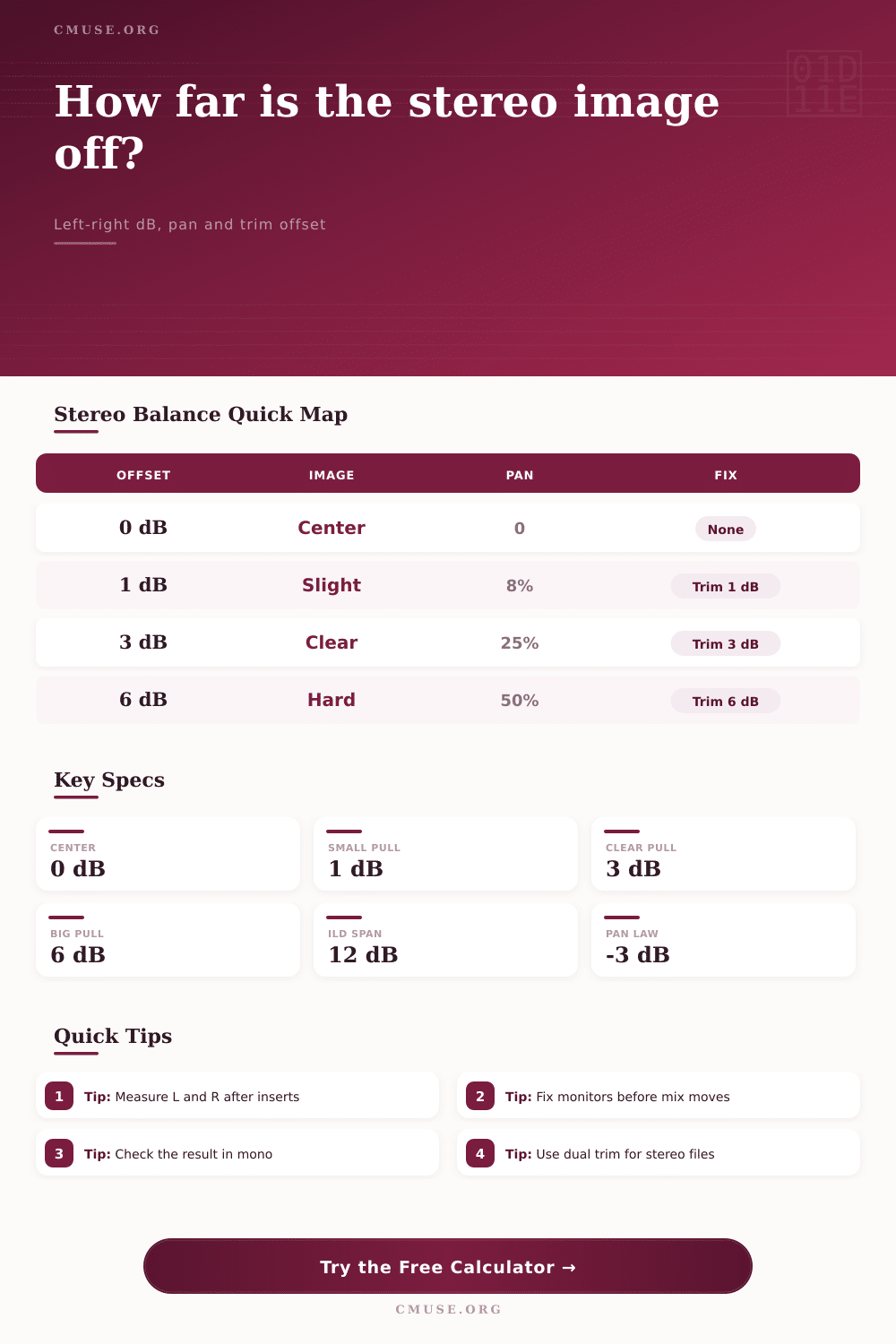
| -0.5 to +0.5 dB | Centered for most program material | 0 to 4% | No trim or a tiny channel match |
| +1 dB right or -1 dB left | Slight lean on headphones | About 8% | 1 dB opposite-side correction |
| +3 dB right or -3 dB left | Clearly pulled from center | About 25% | Dual trim 1.5 dB each way |
| +6 dB right or -6 dB left | Strong side image | About 50% | Cut loud side or rebalance source |
🔊 dB trim and amplitude ratios
| dB offset | Amplitude ratio | Dual trim move | Use case |
|---|---|---|---|
| 0.5 dB | 1.06:1 | 0.25 dB per side | Fine stereo mastering touch |
| 1.0 dB | 1.12:1 | 0.50 dB per side | Small vocal or podcast correction |
| 2.0 dB | 1.26:1 | 1.00 dB per side | Overhead or room pair mismatch |
| 4.0 dB | 1.58:1 | 2.00 dB per side | Noticeable stereo file imbalance |
📝 Common balance workflows
| Workflow | Best correction mode | Watch value | Practical target |
|---|---|---|---|
| Stereo master or stem | Dual trim, keep average level | Mono change after trim | 0 dB center or intentional pan ratio |
| Live two-mic recording | Cut louder side only | Headroom and noise floor | Keep the lead source visually centered |
| Headphone playback check | Monitor offset compensation | Playback-side mismatch | Do not print monitor-only fixes |
| Podcast or dialog pair | Boost quieter side if headroom allows | Speech consistency in mono | Less than 0.5 dB remaining offset |
💡 Balance offset tips
Something just doesn’t sound right in your mix. Perhaps you’ve got your vocal sitting dead-center as it should be. But in your headphones, it seem to lean to the left.
Trust me, you’re not crazy. The human ear is honest in how it hears things placed in space and if something that should be in the middle won’t sit still, well…it will let you know.
Why Your Mix Sounds Off-Center
This isn’t necessarily a mistake in your mix. Often times its a series of tiny mis-matches that result in an unintended shift in the stereo image, and it takes more than sliding a pan knob to fix.
ILD, or inter-channel level difference, is at the root of most issues. You may think nothing of seeing an 18 dB reading on your left channel and 17 dB on the right. That single decibel can make all the difference, even if it’s a subtle difference that are easy to ignore. A single-decibel imbalance tends to throw the image about eight percent over to whichever side has the higher number. It is subtle enough for you to overlook, yet just enough that you are never convinced it’s glued down.
Plugging in levels you measure into the calculator above spares you guessing where that particular dB amount will land along the pan scale. It takes those cold numbers off the meter and turns them into accurate trim adjustments so you’ll know exactly by how much to boost or cut to bring the source back to centre.
The tricky part is that pan laws across hardware and even DAWs can be all over the map. Some operate with a linear amplitude curve. Others use equal power panning, where the perceived volume stay the same from left to right across the panning field. This means your correction would of have to match your real-world playback environment. And this is where the tool comes into play, enabling you to choose which pan law your setup uses so the correction reflects your reality. If not, a correction designed for one system could end up sounding over-corrected on another. It’s a little bit of a technicality, but it matters if you’re striving for perfection.
Another thing to think about: Where along the signal chain do you want it measured? Compression, particularly with stereo-link engaged on compressors, can dynamically change the balance. In other words, there may be more transients on one channel different than another, but then a compressor pulls that channel up in response, concealing the initial discrepancy.
And overhead drum or synth pad scenarios are included among the calculator’s presets, as these often has phase and correlation at play. When the channels correlate highly, i.e., sound alike (they fuse together easy in the brain). With low correlation, even slight level imbalances will feel like a large, unstable image. Tuning this correlation input allows the tool to calculate what the corrected stereo sounds like in mono, key if you’re broadcasting or playing through a club PA system.
Complicating things further, there’s the matter of how you’re monitoring. Perhaps your right speaker is quieter then the left? Maybe you’ve fixed your mix but in doing so created an imbalance for others. Enter the monitor offset function on the calculator where you can plug in the difference between speakers or monitors and separate what’s about your room vs what’s about your mix. That makes a huge difference. Not wanting to compensate for a wobbly speaker stand but instead fix the actual file.
When it says dual trim, it typically mean to raise both channels by a hair to maintain the same overall volume while avoiding any gain staging headaches down the line.
Stereo balance comes down to consistency, ultimately. The track centers around a vocal that allows the keys and guitars to sit comfortabley in their spaces on either side without competing with one another. After you get the foundation locked in, everything else in the mix seem to fall where it should. Chase less perfect symmetry and create more of a solid point of reference. If the reference holds true, the whole thing sounds cohesive, and as an engineer you stop hearing your work.