Sample Offset Calculator
Convert any audio sample offset into milliseconds, seconds, video frames and musical beats at your chosen sample rate, frame rate and tempo – all in one pass
Full Conversion Breakdown
| Time | 44.1 kHz | 48 kHz | 96 kHz | 192 kHz |
|---|---|---|---|---|
| 1 ms | 44.1 | 48 | 96 | 192 |
| 5 ms | 220.5 | 240 | 480 | 960 |
| 10 ms | 441 | 480 | 960 | 1920 |
| 100 ms | 4410 | 4800 | 9600 | 19200 |
| 1 second | 44100 | 48000 | 96000 | 192000 |
| BPM | Samples / Beat | ms / Beat | 1/8 Note (samp) |
|---|---|---|---|
| 90 | 32000 | 666.67 | 16000 |
| 100 | 28800 | 600.00 | 14400 |
| 120 | 24000 | 500.00 | 12000 |
| 128 | 22500 | 468.75 | 11250 |
| 140 | 20571.4 | 428.57 | 10285.7 |
| 174 | 16551.7 | 344.83 | 8275.9 |
| Frames | 24 fps | 25 fps | 30 fps |
|---|---|---|---|
| 1 frame | 2000 | 1920 | 1600 |
| 10 frames | 20000 | 19200 | 16000 |
| 30 frames | 60000 | 57600 | 48000 |
| 1 sec @ fps | 48000 | 48000 | 48000 |
| ms / frame | 41.667 | 40.000 | 33.333 |
| Distance | Delay (ms) | Samples | Frames 24fps |
|---|---|---|---|
| 1 m | 2.915 | 139.9 | 0.070 |
| 3 m | 8.746 | 419.8 | 0.210 |
| 10 m | 29.155 | 1399.4 | 0.700 |
| 34.3 m | 100.00 | 4800.0 | 2.400 |
| 100 m | 291.55 | 13994.2 | 6.997 |
If you’ve ever struggled as an audio engineer to get everything lined up perfectly in your digital audio workstation, only to find that it doesn’t sound right during playback, then you’re not alone. What many audio engineers discover is that visual grid on the screen isn’t necessarily aligned with rhythm of music. For example, if you’re trying to measure your monitor latency or sync audio to video, this can be partcularly frustrating.
The reason behind this misalignment is that we measure time in discrete data points. Depending on how fast (or slow) your music is moving and what sample rate you’re recording at, these values fluctuates.
How to Fix Audio Timing Errors
First, decide how you want to divide up your audio for the beat and specify your desired frame rate and rate (for example, the default video rate is 48kHz, so there are 48,000 samples in a second). The sample offset calculator then does the rest of math for you. It converts raw sample numbers into something easier to understand, like musical beats or seconds and milliseconds.
For example: You may be aware that at typical 48 kHz video rate, there are 48,000 samples per second. But at various settings within a given project, you might assume every millisecond is an even number of samples, and that’s where rounding error can cause all sorts of problems with drift. Enter the sample offset calculator, filling that gap.
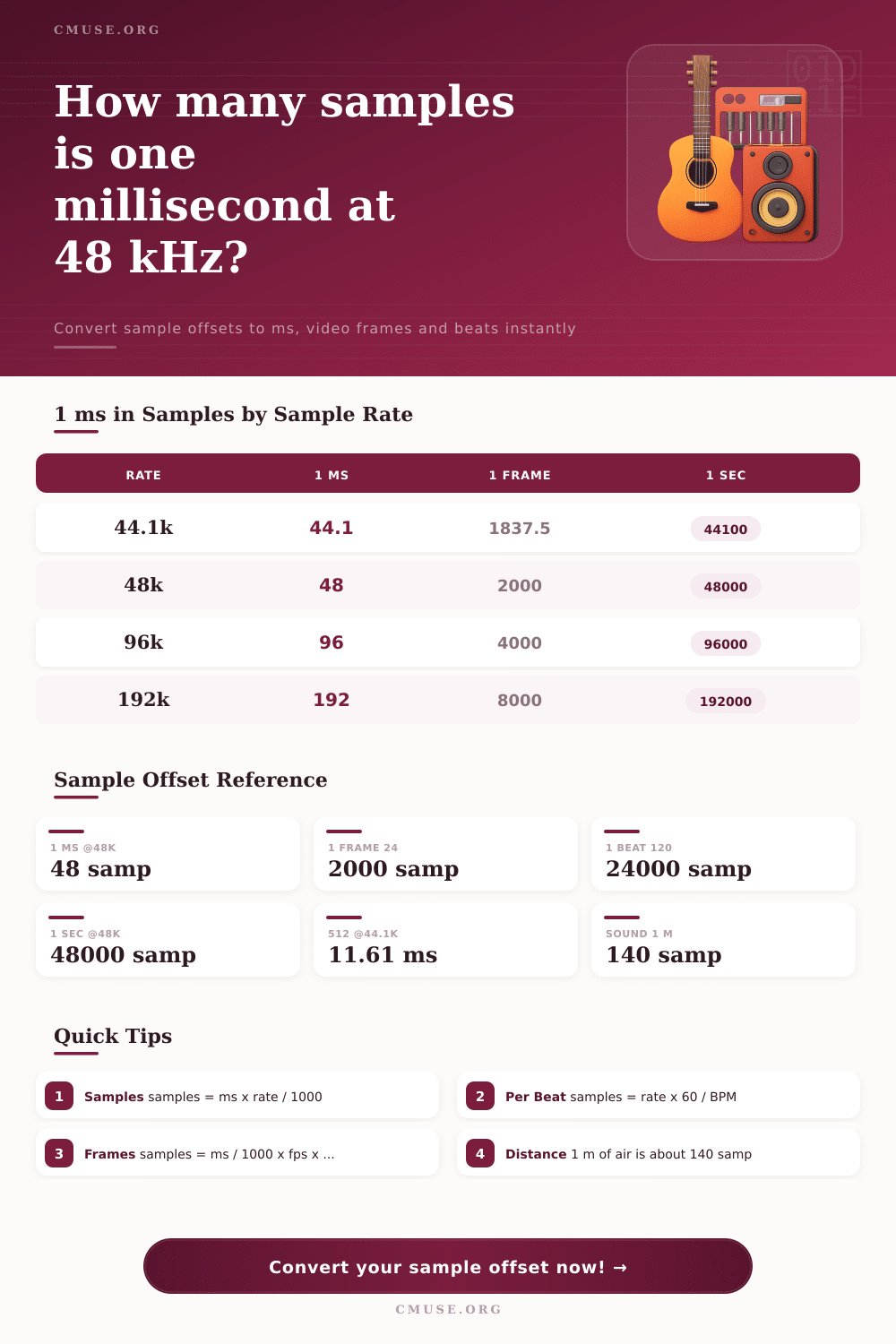
In terms of accuracy, it’s important to understand how sample rate affect time resolution. That means that at 44.1 kHz, there are approximately 44.1 samples in one millisecond. You can’t have fractions of a sample, so over longer periods, rounding errors adds up. This is why video pros care about accurate frame rates.
With 24 fps film stock, a frame duration is about 41.67 milliseconds. When you convert that to audio samples using 48 kHz, you end up with exactly 2,000 samples per frame. Because of that certainty, you’re able to make precise cuts to your audio on frame boundaries which eliminates any visible sync drift or audible clicks. It is a small detail, but it’s incredibely important when delivering professionally.
Timing also complicates music because beats aren’t equal to seconds. A beat at 120 BPM equals 0.5 seconds; at 90 BPM, the same beat is 0.6666 seconds. That equals 24,000 samples at 48 kHz. If you drop tempo to 90 BPM, that same quarter note stretchs to 32,000 samples.
To make things easy, this calculator has switches for whole, half, and sixteenth notes. Then you can visualize what amount of data is contained within each rhythmic division. For example, if you’re measuring the quantization error on an instrument or vocal recording, knowing how many samples something is will help you understand the impact. That’s the kind of small latency that requires compensation.
Convert 1,500 samples into units of time, and suddenly it doesn’t sound so abstract. A delay of 1,500 samples at 48 kHz amounts to approximately 31 milliseconds. In normal room conditions, sound travels about one meter in just under three milliseconds. So a 1,500-sample delay is literally like being a few meters away from your speakers. This makes it easier for engineers to imagine what a microphone-delaying phase issue sounds like when they’re trying to sum multiple microphone together.
On the page are some handy reference tables for common scenarios like comparing sample count at different rates, ie 96 vs 44.1 kHz. You’ll see that for every second of audio, there’s twice as many samples (and thus twice the processing load) at double resolution. That impacts your buffer sizes, too. Doubling resolution increase accuracy of time by a factor of two, but it requires more out of your computer. Learning to balance all this is part of workflow.
The calculator above does the math for you. It helps ensure your edits land on exact frame or beat boundary you want. In audio, precision isn’t usually about whether you can hear one sample better than another; it’s about knowing where the samples are so that you should of known exactly where to put an edit with confidence and consistency.