Beats to Frames Calculator
Convert BPM, bars, beats and meter into exact seconds, rounded frames, samples and SMPTE timecode labels for music edits, film cues and DAW sessions.
Full Calculation Breakdown
| Use Case | Tempo & Meter | Length | Frame Result |
|---|---|---|---|
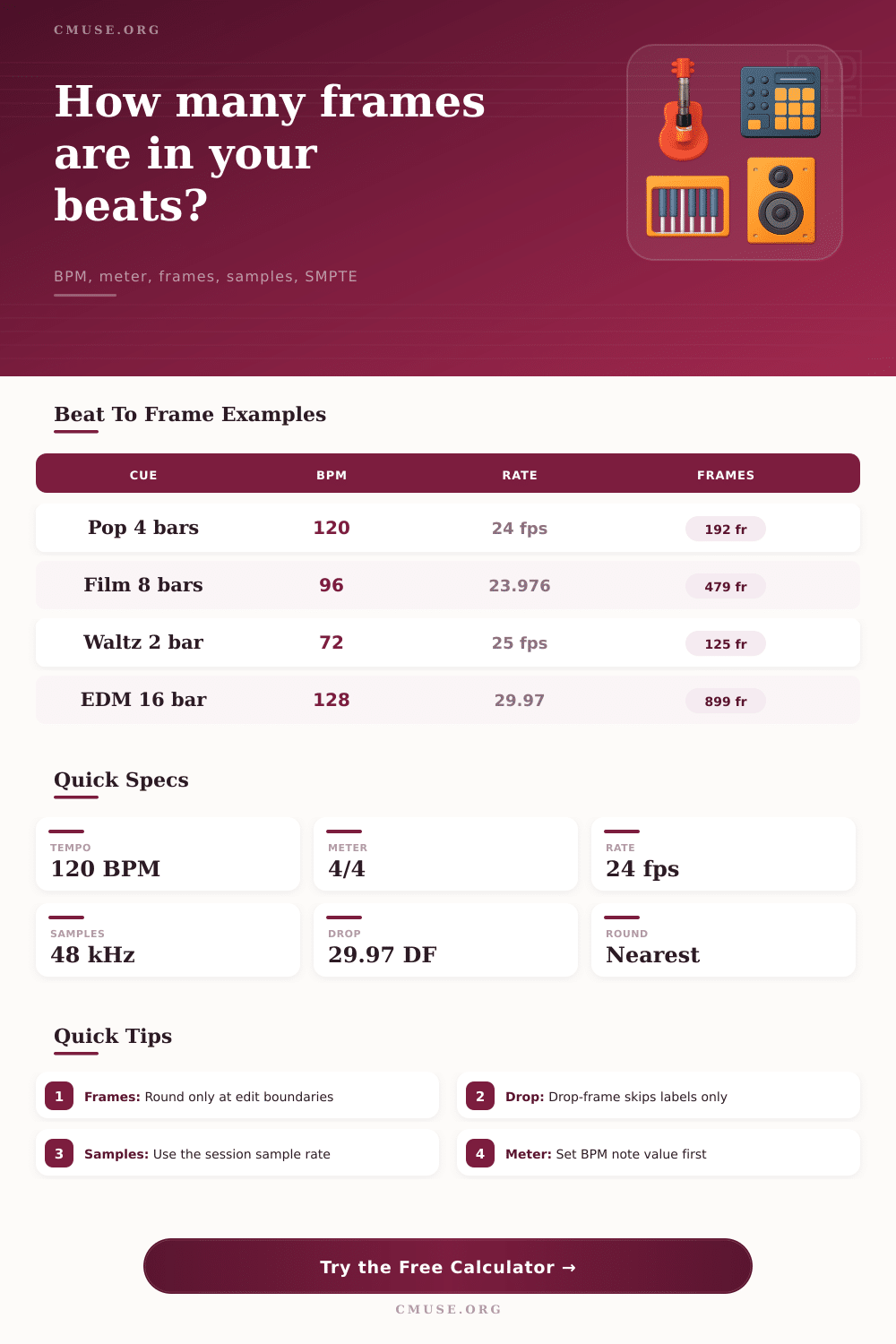
| Pop phrase edit | 120 BPM in 4/4 | 4 bars / 16 beats | 192 frames at 24 fps |
| Broadcast music bed | 100 BPM in 4/4 | 8 bars / 32 beats | 575 frames at 29.97 fps |
| Film cue entrance | 96 BPM in 4/4 | 8 bars / 32 beats | 480 exact frames at 24 fps |
| Waltz pickup phrase | 72 BPM in 3/4 | 2 bars / 6 beats | 125 frames at 25 fps |
| EDM drop section | 128 BPM in 4/4 | 16 bars / 64 beats | 900 frames at 30 fps |
| Frame Rate | Typical Use | True Rate | SMPTE Count |
|---|---|---|---|
| 23.976 fps | HD cinema and NTSC film workflows | 24000/1001 | 24-frame labels, non-drop |
| 24 fps | Film scoring and cinema delivery | 24.000 | 24-frame labels |
| 25 fps | PAL broadcast and European video | 25.000 | 25-frame labels |
| 29.97 fps | NTSC broadcast and long-form video | 30000/1001 | 30-frame NDF or DF labels |
| 59.94 fps | High-frame NTSC video | 60000/1001 | 60-frame NDF or DF labels |
| 60 fps | Games, web video and HFR sessions | 60.000 | 60-frame labels |
| Meter Context | Common BPM Unit | Beat Count Meaning | Check Before Export |
|---|---|---|---|
| 4/4 rock, pop, scoring | Quarter note | One beat is one quarter note | Bars times 4 equals beats |
| 3/4 waltz | Quarter note | One beat is one quarter note | Bars times 3 equals beats |
| 6/8 ballad | Dotted quarter or eighth note | Meter beats are eighth notes here | Select the real BPM note value |
| 5/4 or 7/8 odd meter | Quarter or eighth note | Numerator defines beats per bar | Confirm conductor count style |
| Half-time click | Half note | Tempo beat spans two quarters | Avoid double-length frame counts |
| Setting | What It Does | Best For | Risk |
|---|---|---|---|
| Nearest frame | Chooses the closest whole frame | General cue placement | Can land before or after exact beat |
| Floor | Always rounds down | Edits that must not exceed a hit | Beat may feel slightly early |
| Ceiling | Always rounds up | Visual hits that must not be early | Beat may feel slightly late |
| Drop-frame label | Skips SMPTE numbers, not video frames | 29.97 or 59.94 clock alignment | Wrong if used at 24, 25 or 30 fps |
In film editing, it’s not unusual to find that a musical cue drops just out-of-frame. Furthermore, you feel this disconnect not because you actualy hear it, but because music works with measures and beats while video work with clock cycles and frames. It’s necessary to bridge these gaps with precision between frame rates and tempos, That’s what the calculator on this page does for you.
The problem is that video time doesn’t map easy to tempo as an integer. Set your DAW to play at 120 beats per minute, then edit using twenty-four frames per second: the beat will split evenly. But NTSC broadcast workflows are commonly at twenty-nine point nine seven fps. There’s no such thing as cutting video on a decimal point; instead, you have to pick some integer frame to make your edit decision, creating drift and latency. This tool displays where that drift pile up over longer segment.”
How to Fix Music and Video Timing
People also often forget that if you don’t set the note value correctly, which is important when using dotted notes, the calculator won’t know what you mean. For example, if you use a dotted quarter note for your tempo map, which many people do because of 6/8 time signatures, the beat isn’t actualy a quarter note. Instead, it is one and a half times longer than a standard note. Unless you adjust this option, all your bars will be out by factor of one point five. It’s such a simple toggle but changes everything about what comes out the end of the duration calculation.
The examples above shows you how the meter influences these calculations. Once you understand how to match the music’s pulse to the divisor mathematicaly, you can begin counting the frames.
The headaches caused by frame rates today are relics from a past age. Twenty-three point nine seven six isn’t actualy twenty-four. It’s what Hollywood called “film speed,” which got slowed down to match digital gear. Each second is a fraction smaller than twenty-four; over minutes of footage it starts to add up. You’ll cut on cue to twenty-four fps in your head, but when you export at twenty-three point nine seven six, the cues will backslide a few frame each minute. This thing takes those true rates into account, not the rounded ones that make for good marketing copy. And it displays the precise frame count, so you know exactly where to expect that slip.
Another source of confusion is drop-frame timecode. This one sounds like it deletes frames from the file; it doesn’t. Instead, it ignores certain labels in the SMPTE counter and keeps the clock in sync with actual world seconds when using non-integer frame rates. Using drop-frame logic on a 24fps project will result in total confusion. The switch toggles this functionality according to the rate you choose so there are no mismatches between labels when exporting. Don’t assume all timecode work the same way.
Where does this leave you with edits? If your edit is not precisely on a frame, do you then round up to the next frame or always round down so that you are ensuring the sound never precedes the image? This is where rounding choices in the calculator come into play. Round down and you are keeping the sound behind the visual hit. But, round up and you may create a sharper percussion accent while risking having it land too soon. It’s all about the rhythm of the scene and there is no right or wrong answer. Listen for the trade-off.
Music syncing to picture is a process of controlled imperfection. You’re aligning two separate systems to one continuous timeline. The calculator takes the math out of the guessing and lets you concentrate on the feel of your edit. It will show you exactly when the frame arrives and how many samples that equates to for your session sample rate. From there all that’s left is artistic judgement. You want perceptual alignment, not mathematical perfection. If the beat hits the cut, if it feels inevitable instead of calculated, then you’ve nailed it. That’s what time properly translated sounds like.