Oversampling Calculator
Estimate internal plugin sample rate, Nyquist extension, oversampling latency, DAW buffer delay, CPU multiplier, and anti-alias margin before you raise quality settings across a mix.
Named Audio Plugin Presets
Start with a realistic session: each preset loads a base sample rate, oversampling factor, filter shape, buffer size, plugin count, nonlinear harmonic range, and CPU baseline.
Oversampling Inputs
Current Factor Comparison
| Factor | Internal rate | Nyquist | Latency | CPU load | Alias margin |
|---|
Oversampling Spec Grid
Factor Reference Table
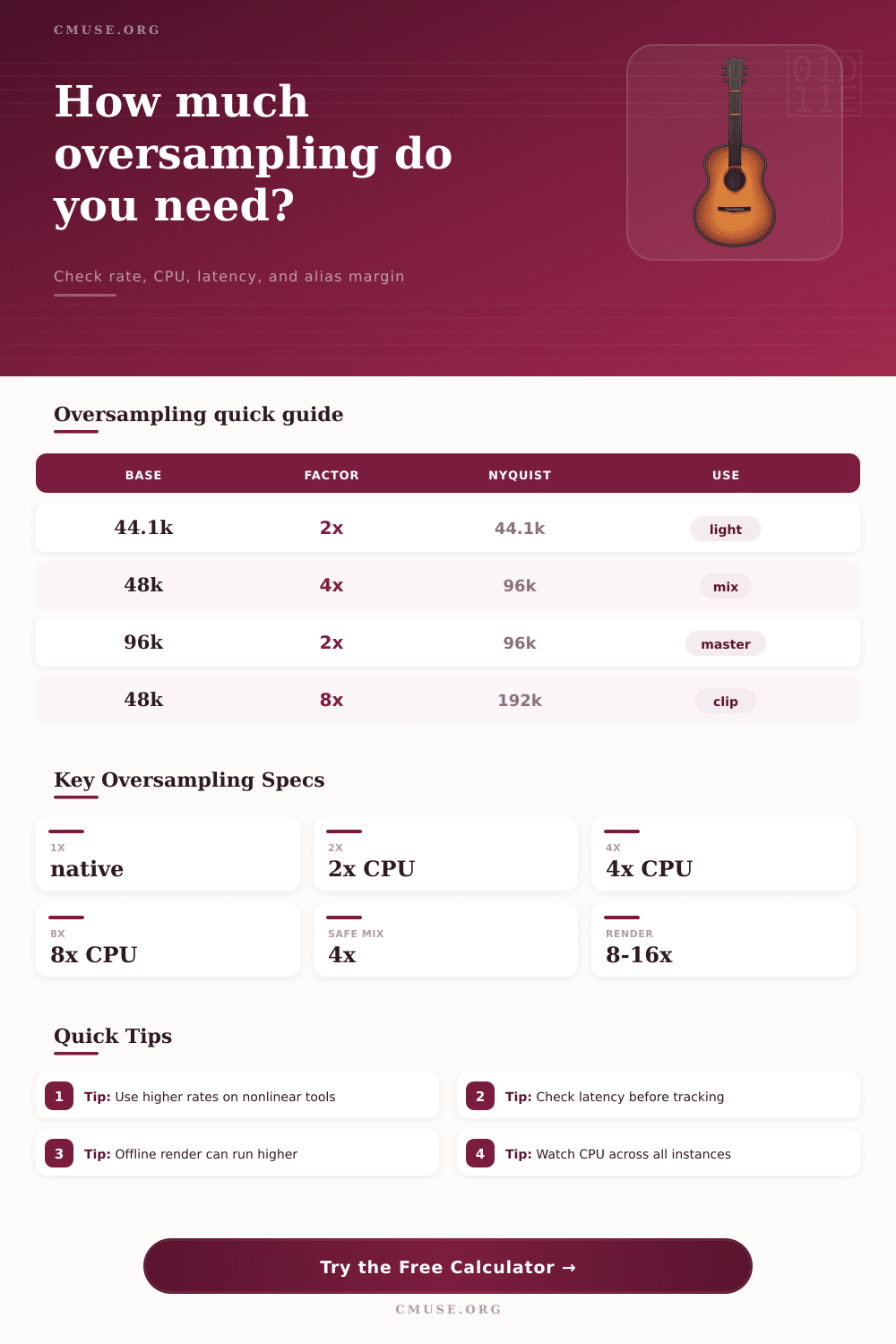
| Base rate | Factor | Internal rate | Internal Nyquist | Typical use |
|---|---|---|---|---|
| 44.1 kHz | 2x | 88.2 kHz | 44.1 kHz | Light saturation, older CPU, quick writing session |
| 48 kHz | 4x | 192 kHz | 96 kHz | Mix bus saturation, amp simulation, soft clipping |
| 48 kHz | 8x | 384 kHz | 192 kHz | Hard clipping, bright synth distortion, true peak limiting |
| 96 kHz | 2x | 192 kHz | 96 kHz | High-rate session with moderate nonlinear processing |
| 96 kHz | 4x | 384 kHz | 192 kHz | Mastering render where latency is not a tracking issue |
Filter Latency and CPU Table
| Filter profile | Transition style | Approx taps | Latency character | Best fit |
|---|---|---|---|---|
| Minimum phase IIR | Wide transition | 32 equivalent | Very low reported delay, phase shift near cutoff | Tracking through amp sims or saturation |
| Linear phase balanced FIR | 90 percent cutoff | 128 | Moderate delay, neutral phase through passband | General mixing and bus processing |
| Linear phase steep FIR | 86 percent cutoff | 256 | Higher delay, cleaner stopband for bright harmonics | Clippers, limiters, aggressive distortion |
| Mastering linear phase FIR | 82 percent cutoff | 384 | High delay, strong rejection for final render chains | Mastering, print stems, offline bounce |
| Zero-latency internal | Plugin dependent | 0 reported | No host delay, usually more passband compromise | Monitoring when timing matters most |
Plugin Preset Comparison
| Preset | Rate and factor | Harmonic stress | Latency priority | Recommendation |
|---|---|---|---|---|
| Clean EQ Mix Bus | 48 kHz at 1x or 2x | Low | Low delay useful | Use native unless analog-mode EQ saturates internally. |
| Vocal Tape Saturation | 48 kHz at 4x | Moderate | Mixing tolerant | 4x usually keeps vocal air harmonics away from foldback. |
| Synth Bass Distortion | 44.1 kHz at 8x | High | Playback tolerant | Use 8x when the patch has bright saw or square content. |
| Mastering Limiter | 96 kHz at 4x | Peak dependent | Latency acceptable | Prefer steep or mastering filters during final bounce. |
| Guitar Amp Sim | 48 kHz at 2x or 4x | High | Tracking sensitive | Track at 2x minimum phase, render at 4x or 8x. |
| Oversampled Clipper | 48 kHz at 8x | Very high | Usually offline | Increase factor before increasing clip depth. |
Common Session Size Table
| Session type | Buffer | Instances | Practical factor | Watch point |
|---|---|---|---|---|
| Tracking vocal chain | 64 samples | 1-3 | 1x to 2x | Round-trip latency and performer feel |
| Home studio mix | 128-256 samples | 5-15 | 2x to 4x | CPU spikes when many nonlinear tools run together |
| Dense electronic mix | 256-512 samples | 15-40 | 4x selective | Synth distortion and clipper chains |
| Mastering session | 512-1024 samples | 3-8 | 4x to 8x | True peak limiting, final SRC, and print stability |
| Offline render | Any | Full chain | 8x to 16x | Long bounce time is acceptable if the result is cleaner |
Aliasing occur when a nonlinear processor creates harmonic that fold back into the audible range. Aliasing occurs within a nonlinear processor’s harmonic when the created harmonic exceed the highest frequency that can be represented. When the harmonics created by a nonlinear processor exceed the frequency limit of the system, the harmonics fold back into the audible range.
Such a phenomenon is referred to as aliasing. Using oversampling to increase the internal sample rate of the plugin can prevent aliasing. The headroom of a plugin are related to the sample rate of the plugin.
How oversampling prevents aliasing
Multiplying the sample rate of the session in which the plugin is used by the factor by which the plugin is oversampled calculates the sample rate of the plugin. For instance, if the sample rate of the session is 48 kHz and the plugin is set to use 4x oversampling, the sample rate of the plugin is calculated as 48,000 samples per second multiplied by 4, which is 192,000 samples per second. Such an increased rate at which the plugin sample allows the harmonics created by the plugin to increase to higher rate before they reach the filter that limits those created harmonics.
Thus, if the engineer multiplies the rate of the highest frequency that is cared about by the order of the harmonics that are created by the nonlinear plugin, the resulting value should of be equal to a value that is lower than the calculated sample rate of the oversampled plugin. Otherwise, aliasing will occur. Another factor that influence whether aliasing occurs is the type of filter used in the plugin.
Filters with stopbands that are perceived as being particularly cleanly are referred to as linear phase filters. Plugins that process bright content from synthesizers, for instance, or for plugins that perform aggressive clipping of the audio signal, often use linear phase filters. Such filters, however, introduce latency into the signal path.
Minimum phase filters have low levels of latency. Musicians often use minimum phase filters for plugins that allow the musician to monitor the audio signal live through the amp simulation plugin. The latency of these filters, however, may be too high for application like monitoring the kick drum of a drummer.
Another factor that contribute to the CPU usage of a plugin is the oversampling factor of the plugin. The CPU cost of a plugin increases with both the oversampling factor of the plugin and the complexity of the filter within that plugin. While a single instance of a plugin may use little CPU power at 8x oversampling, twelve instance of that same plugin at 8x oversampling will use much more CPU power than that single instance.
Thus, engineers should consider the number of instances of the plugin that they plan to use and the number of core on which their digital audio workstation will perform those instances of the plugin. The more instances of the same plugin that are used, the more CPU power will be required by the plugin. Thus, increasing the oversampling factor of the plugin will also increase the CPU load of that plugin.
Many engineers will set the oversampling factor of a plugin to 4x. However, 4x oversampling may not be sufficient to ensure that aliasing does not occur. For instance, if the source material is already near 18 kHz in frequency and if the nonlinear plugin creates twelfth order harmonics of the signal, then 4x oversampling may not be sufficient to ensure that the harmonics do not fold back into the audible range. Thus, the oversampling factor can be increased to 8x to allow for the headroom to be restored for the harmonics created by the plugin.
However, one should only use 8x oversampling when rendering projects that are to be completed offline. During tracking of individual audio files, the oversampling factor should instead be set to a lower factor, such as 2x oversampling or the native sample rate of the digital audio workstation. The size of the buffer within the digital audio workstation and the oversampling factor contribute to the total latency of the audio signal that is heard by the performer using the plugin.
A small buffer size will limit the latency of the signal that is monitored through the plugin. The plugin, however, introduces its own latency into the signal. Thus, the latency of the signal is equal to the sum of the buffer size and the latency of the plugin.
The total latency is an important parameter to understand, as it will allow the engineer to decide whether the signal will create a comb-filtering effect when played through the headphones of the audio engineer. The decision of the factor by which to oversample the plugin can depend upon a variety of factors that relate to the stage of the project at which the engineer is working. For instance, during the tracking stage of a musical project, latency is a critical factor to maintain in order to encourage the musician to create a good performance.
During the mixing stage of the project, however, oversampling is permitted on the plugins that are known to require such headroom to prevent aliasing. During the rendering stage of a project, though, the engineer need to make no concern for latency, so oversampling factors as high as 8x or 16x may be used. Thus, oversampling should not be applied to every plugin within a project, but only to those nonlinear plugins that create harmonics that require more headroom.